
Submitting an incident report
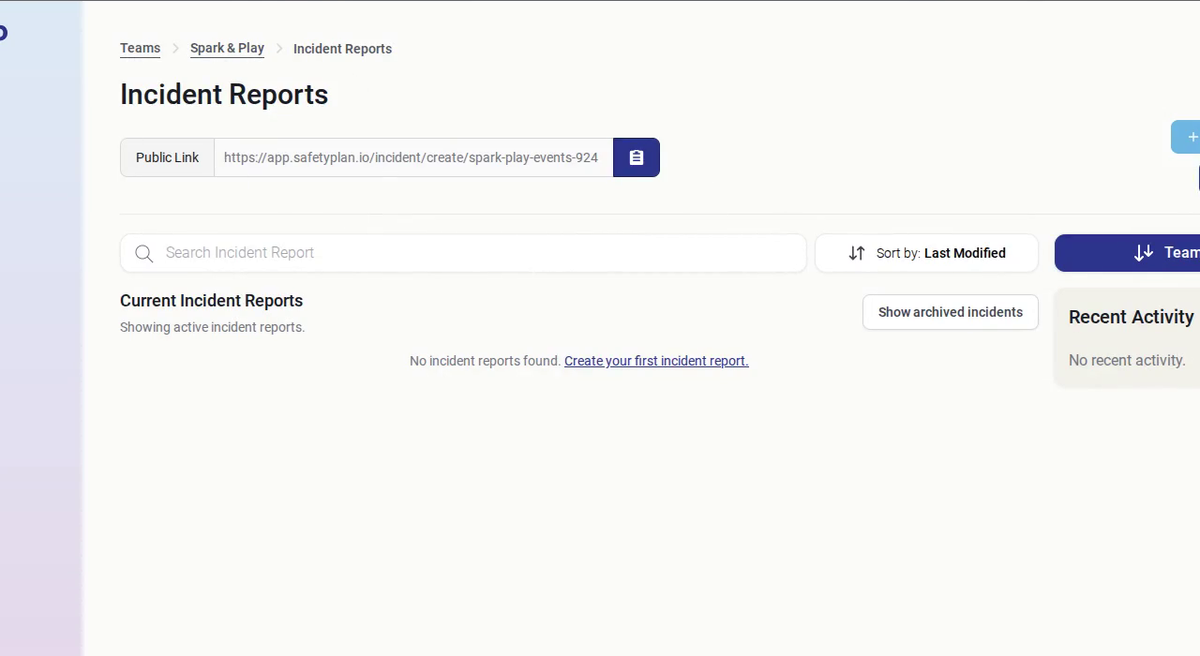
Anyone can report an accident, incident or safety concern using your team's public incident report link. They don't need to log in, so you can share the link with your wider organisation and contractors on site.
The form works on phones as well as computers. A phone is often easiest, as you can take and upload photos of the scene straight away.
Finding the form
- Anyone: use the public link your team has shared.
- Team Owners and Admins: on the Incident Reports page, copy the Public Link or click + Create Incident Report.
Filling in the report
The form has seven short steps. Click Save & Continue after each one.
1. Your Information
Your name, job title, telephone, email and address, so the team can follow up with you.
2. Where & When
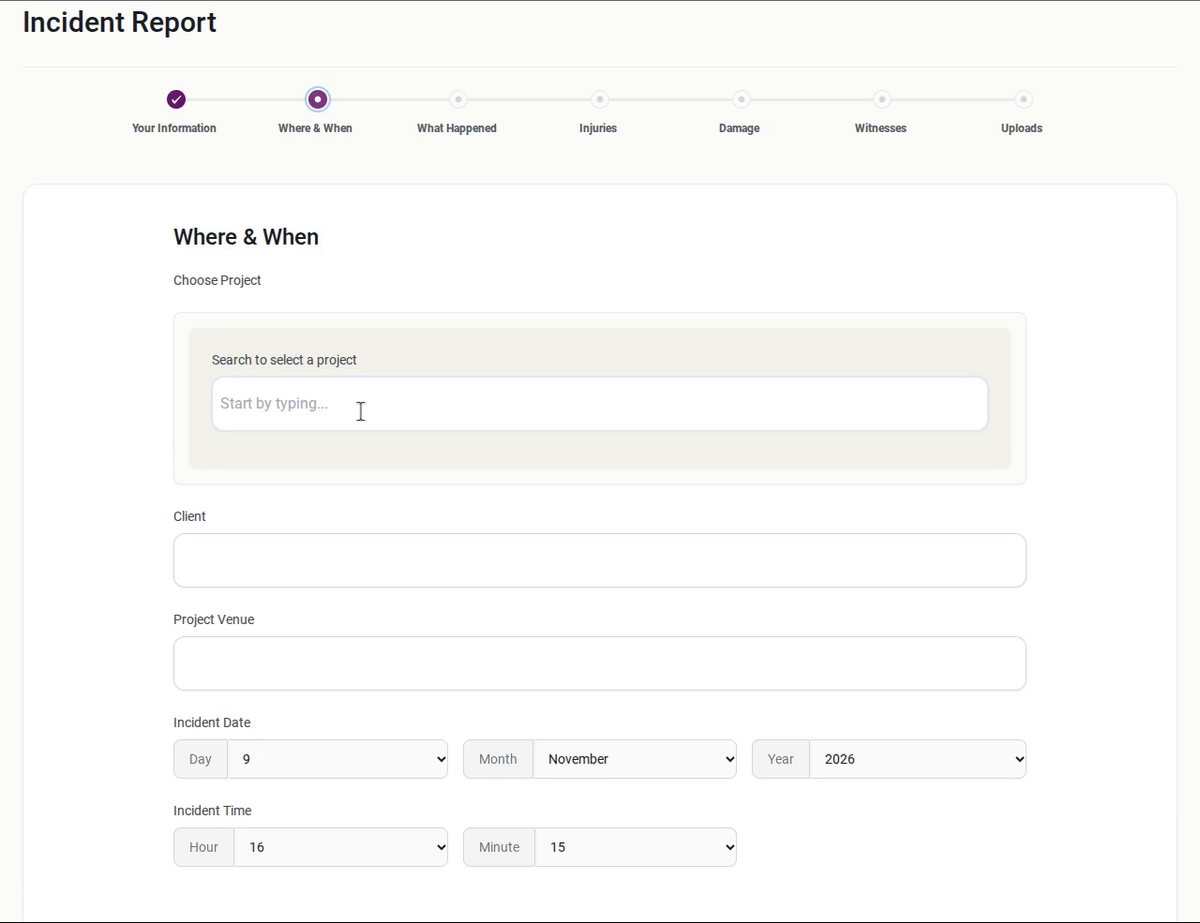
Search for and select the project. The client and venue are filled in for you. Then set the date and time of the incident.
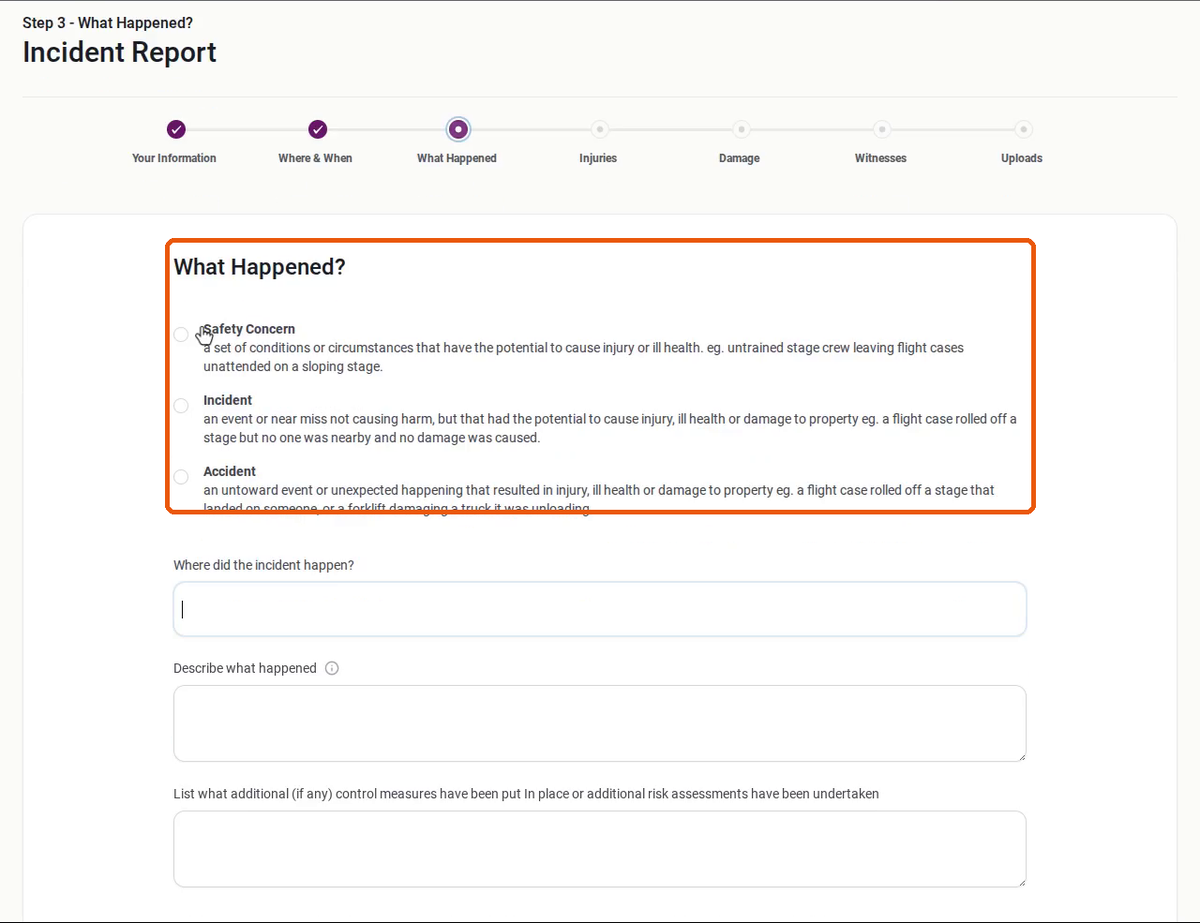
3. What Happened?
Choose the type of report:
- Safety Concern: conditions that could cause injury or ill health, for example untrained crew leaving flight cases unattended on a sloping stage.
- Incident: a near miss that caused no harm but could have, for example a flight case rolls off a stage but no one is nearby.
- Accident: an event that caused injury, ill health or damage, for example a flight case lands on someone.
Then say where it happened, describe what happened, and list any additional control measures already put in place.
4. Injuries
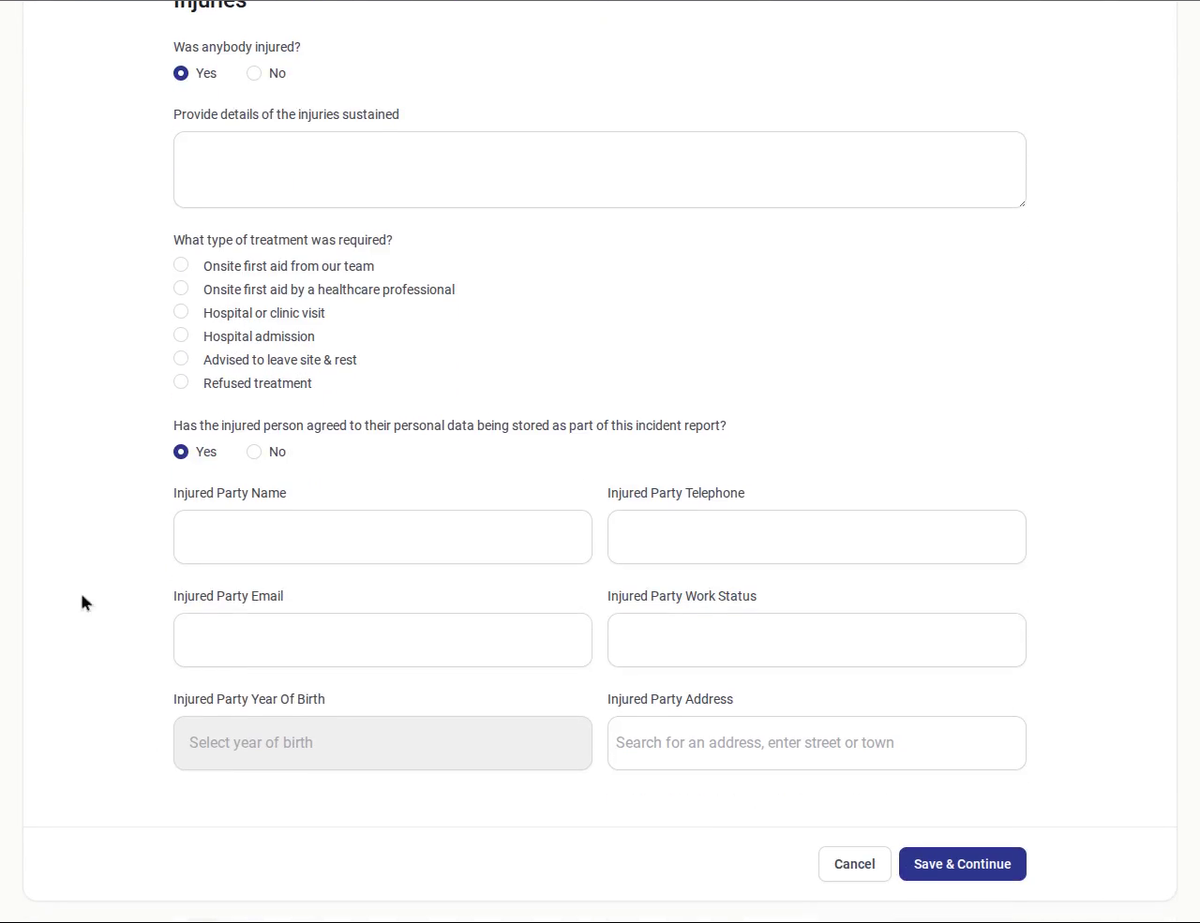
Say whether anyone was injured. If so, give details of the injuries and the treatment needed (first aid on site, hospital, advised to leave site and so on). If the injured person has agreed to their details being stored, add their contact details.
5. Damage
Say whether there was any loss of or damage to equipment or property, and give details.
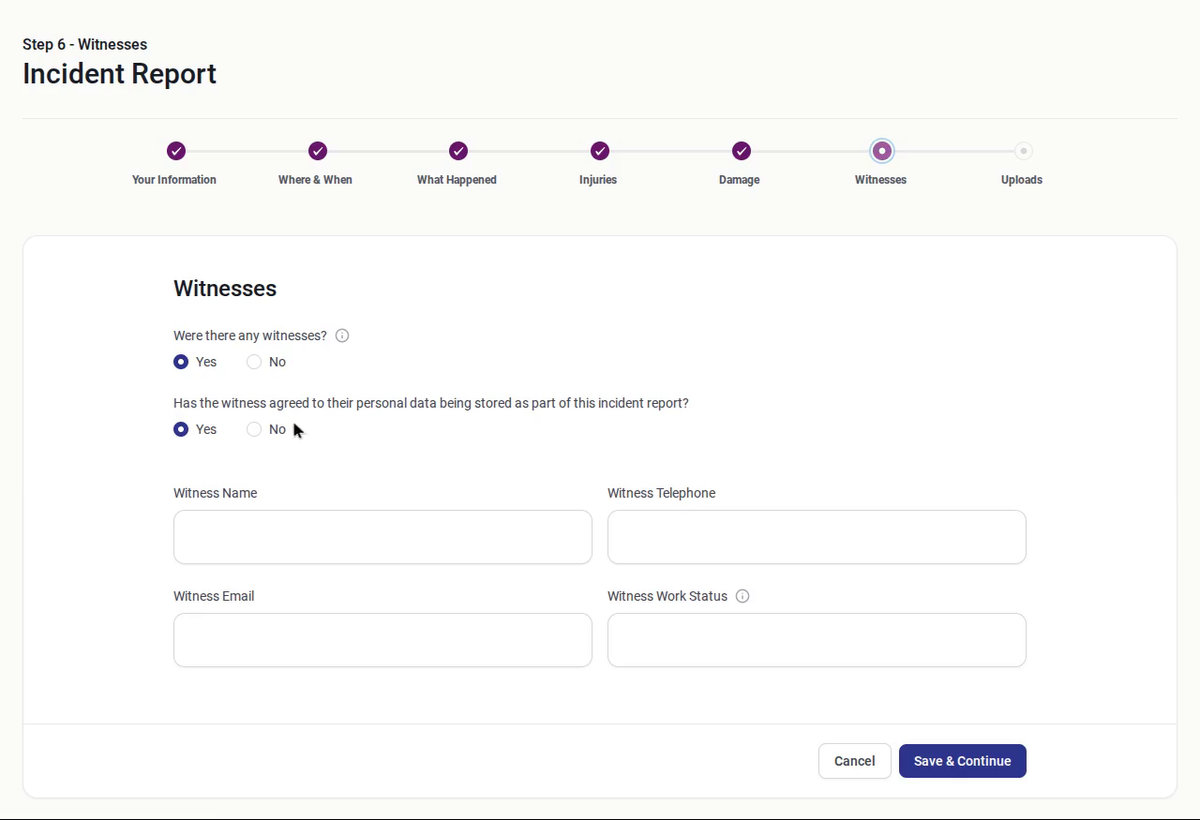
6. Witnesses
Say whether there were any witnesses. If they've agreed to their details being stored, add their name, telephone, email and work status.
7. Uploads
Upload any photos or documents, such as pictures of the scene or the damage. Word, Excel, PDF, JPG, PNG and ZIP files up to 10MB each are accepted.
Click Save & Continue to submit the report. The people your team has chosen are notified by email straight away.
If someone is seriously injured, deal with the emergency first. Some injuries must also be reported to the HSE under RIDDOR. See Why report incidents?