
Creating a Project
SafetyPlan.io organises your work into projects. Think of a project as a folder for an event, tour, show or build. Each project can hold one or more safety plans. A festival might have a construction phase plan, an event management plan and a fire safety plan, all in the same project.
You set up a project and its first safety plan together, on one page.
Step 1: Start a new project
Open your team from the Dashboard and click + Create New Project (top right). If the team has no projects yet, you can also click create one now.

Step 2: Fill in the project overview
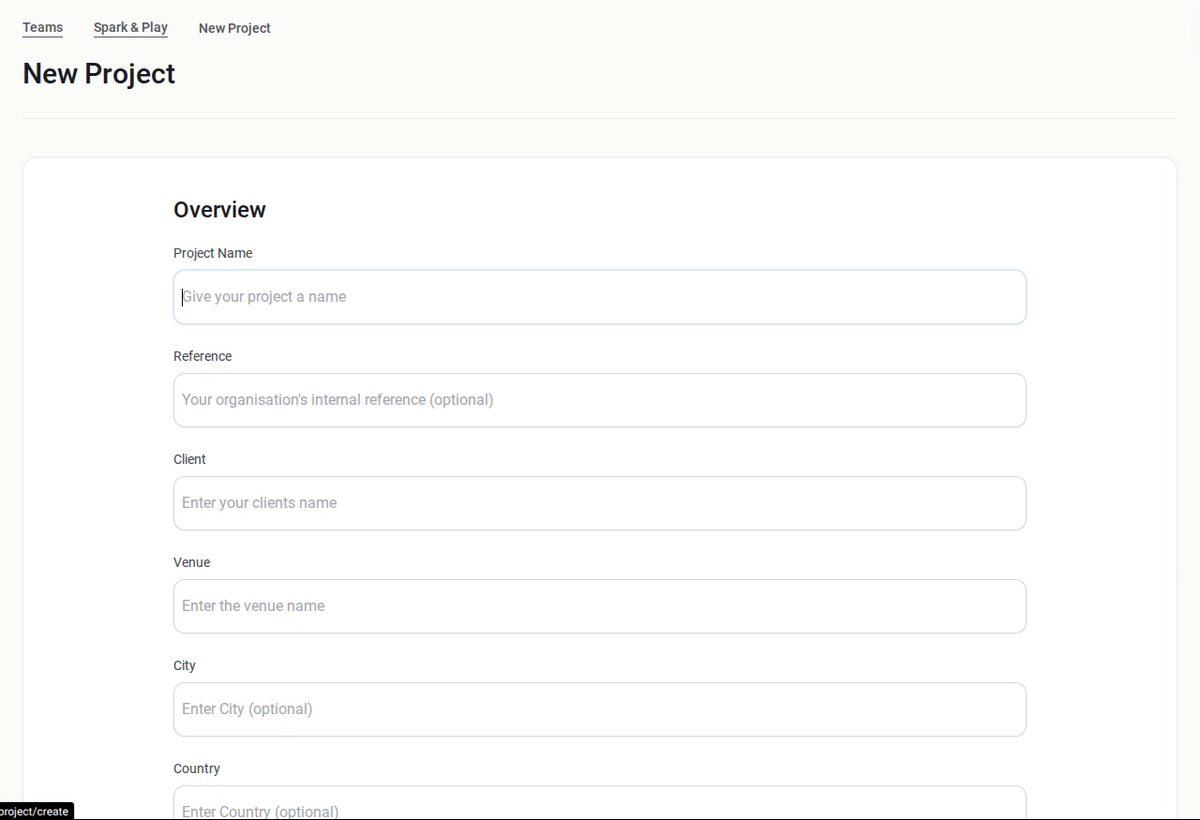
- Project Name: for example "Summer Festival 2027".
- Reference: your own job or reference number (optional).
- Client: who the work is for.
- Venue, City and Country (City and Country are optional).
- Project open date: the date the event or project opens.
These details help you search for the project later and appear on your exported plan, so it's worth filling them in.
Step 3: Create your first safety plan
Scroll down to Create your first safety plan.
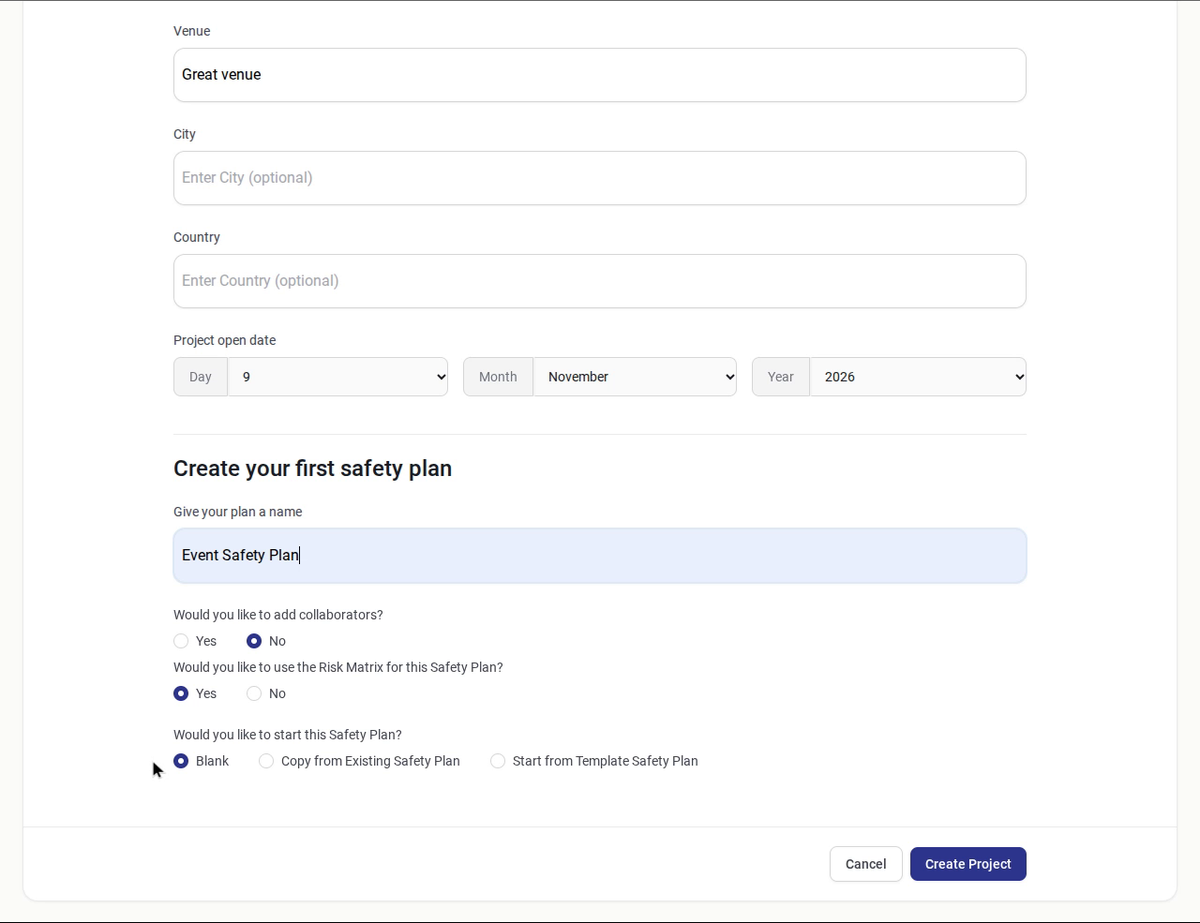
- Give your plan a name: for example "Event Safety Plan" or "Construction Phase Plan".
- Would you like to add collaborators? Choose Yes to give other team members access to this plan. See Team Collaboration.
- Would you like to use the Risk Matrix for this Safety Plan? Choose Yes to score your risk assessments with likelihood × severity ratings.
- Would you like to start this Safety Plan? Choose how to start (see below).
Step 4: Choose how to start the plan
Blank
Starts an empty plan, ready for you to add your own sections, risk assessments and supporting documents.
Copy from Existing Safety Plan
Reuses a plan you've already written. Search for it or pick it from the list.
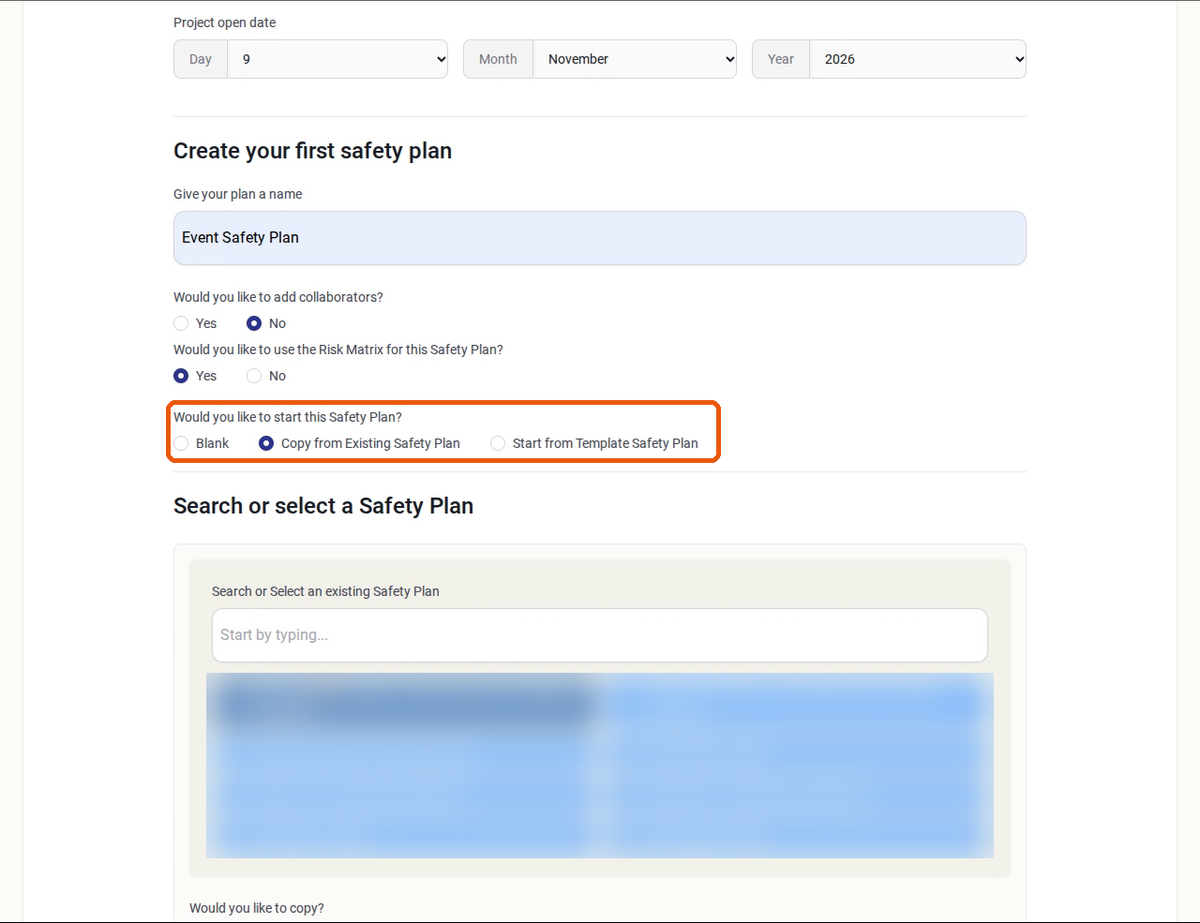
Start from Template Safety Plan
Builds the plan from one of your team's templates. Search for a template or pick it from the list.
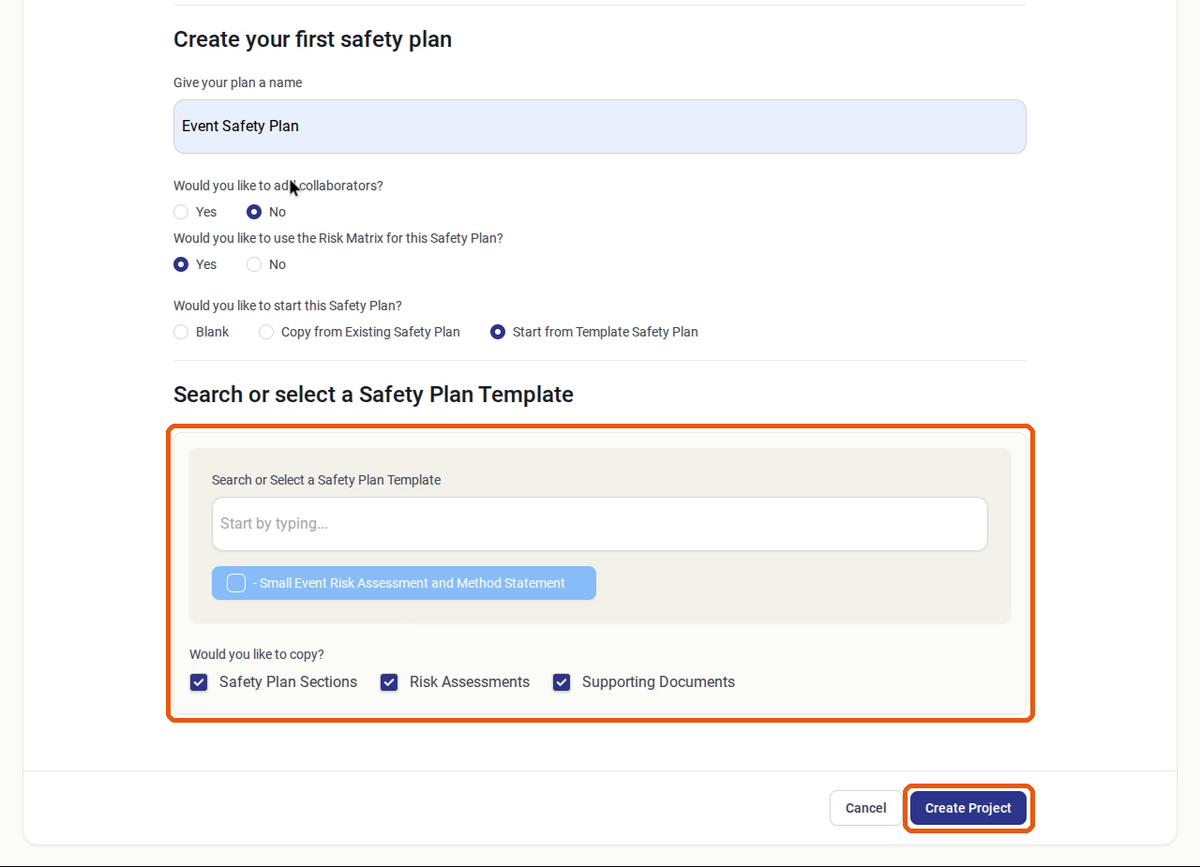
For both copy and template, use Would you like to copy? to choose what to bring across: Safety Plan Sections, Risk Assessments and/or Supporting Documents.
Important: Anything you copy is marked as needing review. Check every copied section and risk assessment against the new event before you export the plan.
Step 5: Create the project
Click Create Project. Click Cancel to leave without saving.
Related: Editing, Archiving & Deleting Projects · Creating Complete Safety Plan Templates · Exporting